
Record the session. Keep it yourself.
Save a session's video and audio, or audio only, including screen share, Whiteboard, EMDR and games. The file is saved to a folder you choose on your computer and is never sent to our servers.
Session Recording in three steps
Turn it on
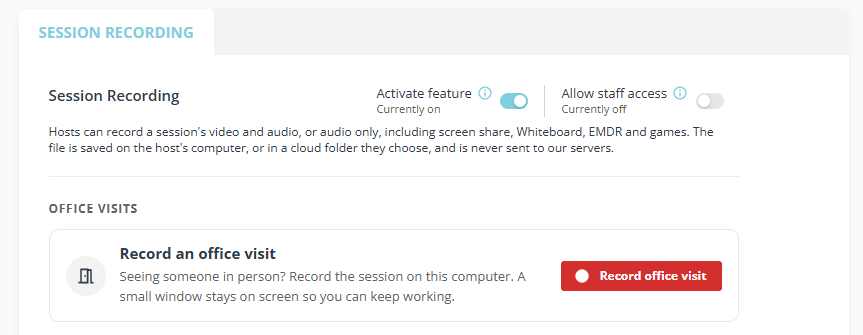
Session Recording is off by default. A clinic admin switches it on, and chooses whether staff can use it.
Confirm consent
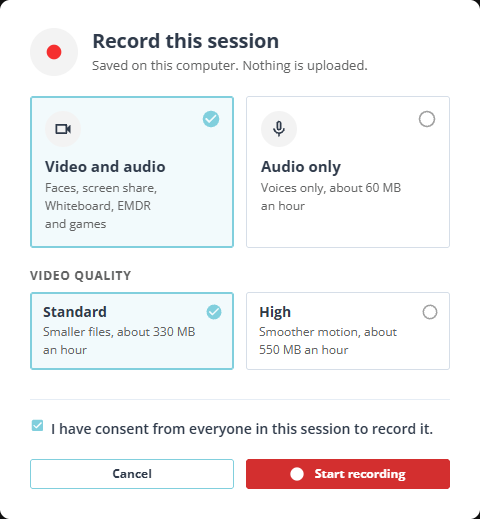
In a session, choose Record session from the More menu. Pick video and audio or audio only, then confirm you have consent from everyone in the session.
Save to your folder
When you stop, the recording saves to a folder you choose on your computer. Nothing is uploaded to HIPAA LINK, and we keep no copy.
Clear for you, clear for your client
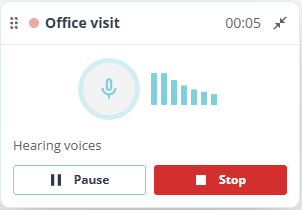
Clients see a notice when a session is being recorded. You see a timer with Pause and Stop at the top of the screen.

Always in viewThe recording timer stays at the top of the screen, with Pause and Stop one click away.
Choose the sizeAudio only is about 60 MB an hour. Video is about 330 MB an hour at Standard quality, or about 550 MB an hour at High for smoother motion.
Consent firstRecording cannot start until you confirm you have consent from everyone in the session.
Record in-person sessions too
Seeing someone in your office? Record the visit with this computer's camera and microphone. A small window stays on screen so you can keep working, with Pause, Resume and Stop.
- Video and audio, or audio only
- Add LINK Notes to write a progress note from the visit. The audio is uploaded securely to write the note, and the recording stays on your computer.
- For the clearest recording, keep the microphone between you and the people you are seeing
Your file, your folder
A folder you choose
Save to a folder you choose on your computer, such as Documents > HIPAA LINK Recordings.
Never on our servers
HIPAA LINK does not record sessions on its own and never stores a recording on our servers.
Use your own, encrypted computer
A recording contains health information. Use a computer that only you use, with disk encryption turned on.
Synced folders
If your computer syncs that folder to your own cloud storage, that storage is yours, so make sure it meets your own HIPAA requirements.
Good to know
No. Recordings are saved to a folder you choose on your computer and are never sent to our servers.
It is off by default. A clinic admin switches it on and chooses whether staff can use it.
Yes. You confirm you have consent from everyone in the session before recording starts, and clients see a notice while the session is being recorded.
Video and audio of the session, including screen share, Whiteboard, EMDR and games. You can also choose audio only.
Included with your trial and paid plans. See pricing.
Session Recording works in desktop browsers.
No. They are separate features. LINK Notes uses session audio only to write your progress note. Learn about LINK Notes.
Related features
Keep the sessions you need
Use the whole platform free for 14 days. No credit card required. Subscribe anytime to keep full access.